
CSV upload locations
Where to upload CSV metadata on stock photo platforms.
Fotometa generates titles, descriptions, keywords, and CSV metadata. This slideshow shows where to apply those CSV files on Shutterstock, Getty Images, and Adobe Stock.
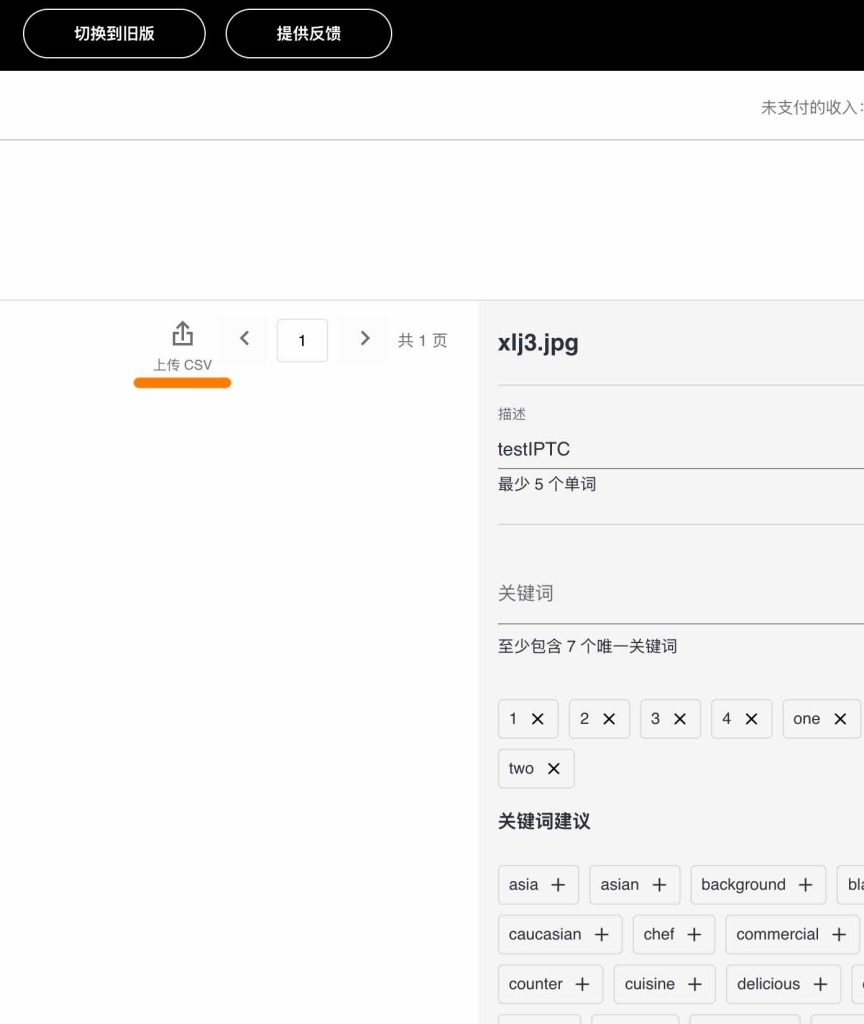
Shutterstock CSV
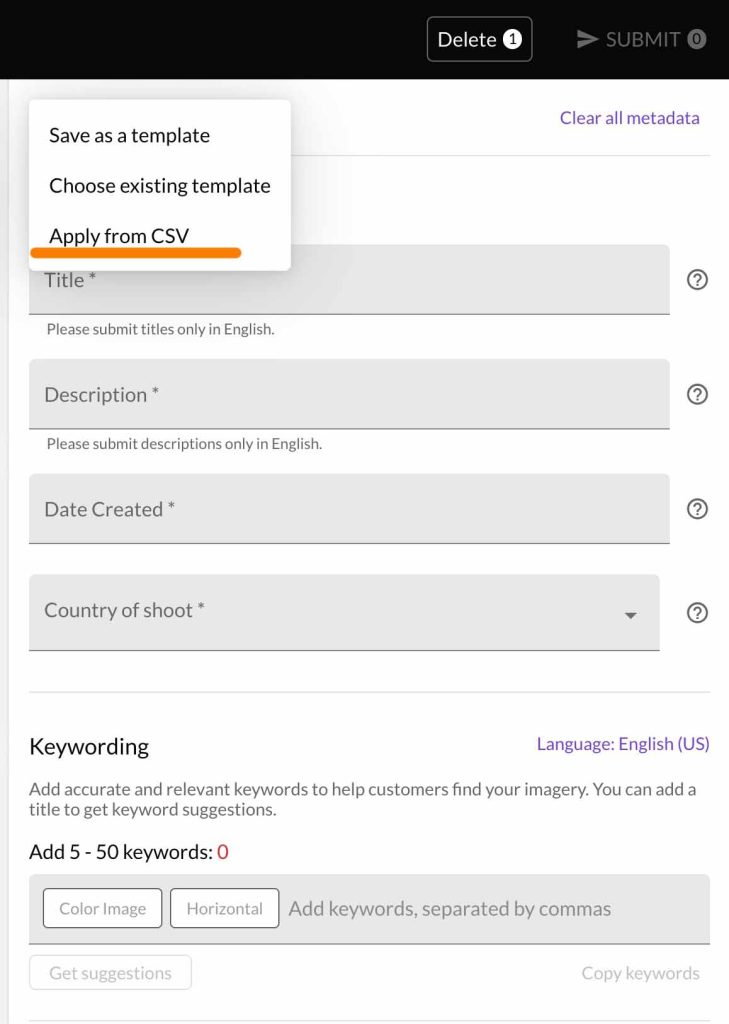
Getty Images CSV
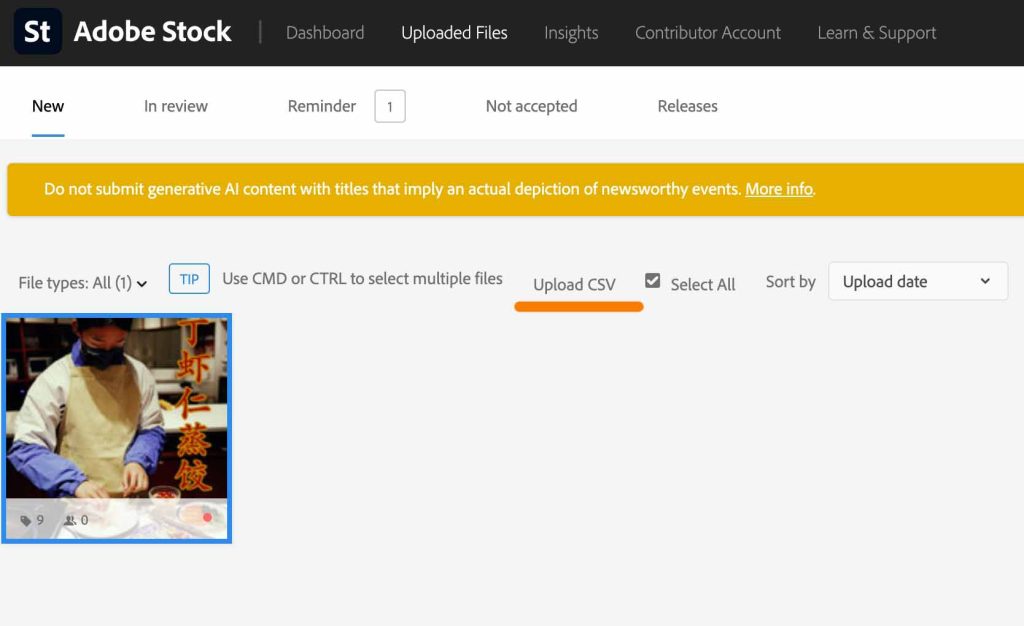
Adobe Stock CSV

CSV workflow guide
CSV entry points for common stock contributor workflows.
Use the buttons or wait for the slideshow to move automatically. The orange marker highlights the area to look for after you have exported CSV metadata from Fotometa.
Workflow
Generate first, upload second.
Use Fotometa to create titles, descriptions, and keywords for a batch, export the CSV, then apply that CSV inside the contributor platform before final review.
Review tip
Platform interfaces can change, but the workflow remains similar: upload files, export metadata from Fotometa, apply the CSV, then manually check title, description, keyword order, category, releases, and editorial restrictions.
Why this matters for stock contributors
Many creators generate strong metadata but lose time finding where each marketplace accepts CSV files. A clear CSV workflow reduces repetitive typing and makes it easier to submit the same asset batch across multiple image libraries.
- Shutterstock: look for Upload CSV around the upload/file management workspace.
- Getty Images: use the metadata/template menu and choose Apply from CSV.
- Adobe Stock: select uploaded files, then use Upload CSV in the contributor file list.